

To open your SBI HRMS account, use the official login portal and sign in with your PF Index—this is where you can access salary slips, GEMS, leave, and other HR services.
- Login portal: SBI HRMS Login
- Login ID: PF Index (employee/pensioner code)
- First-time login: Click “Forgot Password” to create your password
Note: SBI does not provide a pre-set password—you must generate it during your first login using your registered mobile number and email ID.
The State Bank of India handles a massive workforce—2.3 lakh employees, 4.4 million pensioners, and even dependent family members—and most of their day-to-day HR work now runs through the HRMS portal.
👉 The official login portal of State Bank of India is:
- New SBI HRMS Login: https://hrms.sbi.bank.in/2015/pages/authentication/sbihrms.htm
- Old portal: https://hrms.onlinesbi.com → ❌ No longer working
- Mobile access: MyHRMS App (Android & iOS)
Note: The HRMS portal is available for Officers, Clerks, Subordinate, and Sub-staff. But for apprentices, you have to confirm with your branch first for login at HRMS.
First-Time Login: How to Activate SBI HRMS
Here’s where most Newbie employees and pensioners get stuck. HR Team or LHO does not give you a username/password. Instead:
- After your joining, the branch HR or your Local Head Office (LHO) HRMS department will link your PF Index (Employee Code) with your currently working mobile number and email ID.
- You can confirm with your controller. If delayed, call your Local Head Office (LHO) HRMS cell and ask them to activate your ID. However, it can take upto 1–2 months after joining.
- As per the SBI portal, you can contact hrms.support@sbi.co.in & 1800-425-3800 for login issues.
- For General issues – hrms@sbi.co.in
How to Login to SBI HRMS (Step-by-Step Process)
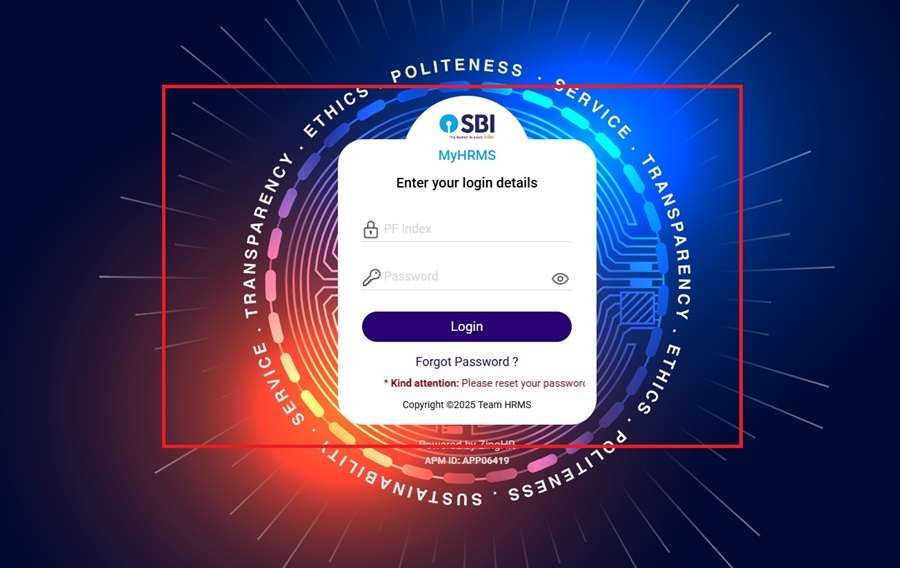
- Now, simply visit the new portal using a search engine and Google Chrome.
- Enter your full PF Index number.
- Click on Forgot Password (yes, even for first-time login).
- Here, type your registered email ID and mobile.
- You will get OTPs on both; you have to validate them.
- For a strong password, create a new, unique password with numbers, digits, and symbols.
- All Set! Log in again with PF Index + new password.
How to Claim Reimbursements in the Portal
Reimbursements (like petrol, medical, telephone bills, and briefcase allowance) are also managed via HRMS.
Where to get:
- Log in to HRMS first, in the header menu, go to My Benefits in the employee dashboard
- Select Reimbursement products.
- Select the type of reimbursement (such as newspaper, fuel, medical, etc.).
- Upload bills/receipts (if required).
- Submit for approval.
- Track status under Approvals.
Where to download my Salary Slip from SBI MyHRMS
- After logging in, go to the employee dashboard. Here, you will see sections like My Details, Attendance, Tax, and Benefits.
- Click on ‘Payrolls and reports’ – Under the Pay & Benefits menu, find the Salary Slip option.
- It is usually yearly and monthly-wise and you can download it as a PDF or print it out instantly.
- The slip opens in a new window or starts downloading directly.
Notice: The internal HRMS system updates time-to-time, so steps can be up and down.
What is the PF index?
In HRMS, your PF Index number is your login ID.
- It is usually a 7 to 9-digit number.
- If it begins with a zero, you must skip the zero while logging in.
- This PF Index special number code every employee and pensioner.
- It is available on your payslip, pension slip, ID card, and other official letters from SBI.
For employees, the PF Index is also linked with ADS (Active Directory Services), and for pensioners, it is used for OTP validation during password reset.
SBI HRMS Dashboard: What You See After Login
Once logged in, your dashboard opens with your uploaded photo, your branch name and code (Barola – 05411), and the PF index front of your home portal.
Key Menu Options
- My Details: Department, joining date, tenure, manager
- GEMS: Performance and yearly recognition points
- My Profile: Contact, nominee, emergency details
- SBI Care: Employee support and health services
- Approvals: Pending requests (leave, reimbursements)
- Announcements: Circulars and user manuals
- Attendance & Leave: Apply and track leave
- Tax Section: Form 16, TDS, investments
- Benefits: Reimbursements and perks
- Holiday & Booking: Holiday list and holiday home booking
Quick Access (Top Panel)
- Notifications / My Growth / My Social
- Team Attendance (for managers)
- Sanjeevani: HR grievance support
Other Options
- Employee Search
- Settings: Password, language
- Updates: Announcements, birthdays, events
SBI Holiday Home Booking Online
Here are the Step-by-Step Booking Process –
- Log in to your HRMS (web-portal or app).
- Click on Holiday Home Booking.
- Select New Booking.
- Choose Circle & Holiday Home from the list.
- Select dates and submit the form.
- Room availability and rent will be displayed.
- Confirm by clicking “Save & Proceed.”
- Enter guest details (staff no, name, relation, DOB, gender, mobile).
- Add all members by clicking the “+” sign.
- Verify details and confirm.
- A success message will show, and an SMS confirmation will be sent to your registered mobile.
1. Who can book –
- Both serving and retired SBI staff.
- Pensioners are also allowed.
2. Booking window –
- Can be booked 120 days in advance.
- Minimum: 4 days before stay (if less, the approving authority must decide).
3. Charges per day (depending on retirement rank) –
- Subordinate Staff: ₹25/-
- Clerical Staff: ₹50/-
- Supervising Staff: ₹100/-
4. Cancellation & Penalty Rules –
- Cancel more than 15 days before stay: Full refund of booking charges.
- less than 15 days before stay if cancelled: No refund of booking charges.
- Cancel 1 day before stay: No refund + ₹500 penalty.
- Cancel on the day of stay / fail to report: No refund + ₹500 penalty.
What is Sanjeevani in SBI HRMS?
Sanjeevani is a pure internal HR grievance helpline & counselling support system for employees, it works for pensioners, and family pensioners also. You can access directly through the portal for any issues.
Accessible via:
- Phone: 022-22858130
- Email: (sanjeevani.pensioner@sbi.co.in or sanjeevani.hr@sbi.co.in)
It is meant for:
- Employees with HRMS or policy-related concerns.
- Pensioners needing assistance with pension-related services.
SBI HRMS for Pensioners and Families
Your old employee code is your login ID same as other employees. If your online HRMS is inactive, you can contact with Pension Paying Branch (PPG) Department or your Administrative Office (AO) for activation.
- HRMS pensioner issue – sanjeevani.pensioner@sbi.co.in & 022-22858130 (It works on = Mon–Fri, 10:30 am–6:00 pm)
After login, your dashboard will look like –
- Firstly, you will show the Pension Paying Branch name in front and the registered code.
- My Details
- Medical Help
- Life Certificate Upload
- Dependant Information update
- Upload Photo
- Latest Activity
- Download Pension Slip (monthly boxes for June, July, August, etc.)
- Health Assist
- Download Pensioner ID Card
- Pension Payment Advice
- Dependant or Family ID Card Generation.
- Sanjeevani (complaints, queries)
1. SBI Care – Health Assist for Pensioners
Another important feature for retirees is SBI Care (Health Assist), available under the pensioner dashboard.
Here, pensioners can:
- You can apply for assistance
- Add phone numbers, email addresses, and residential details
- Register dependent family members for health-related services
It works like a support and information hub rather than a full medical insurance platform.
2. Where to get my get your Pensioner ID Card
- You can use the MyHRMS app and log in.
- Open the home and scroll down to the end of it.
- You will get a download Card ID Card.
- Here, you can select your name or your dependents, such as your spouse or son.
- By tapping “Download ID Card”, it starts generating.
SBI MyHRMS Mobile App
The MyHRMS app mirrors that online portal but in a mobile-friendly design. It works on normal smartphones and accessed anywhere. You can download it from the Play Store and iOS. It works on the same employee code.
At the footer of the app, you will find five options:
- Home
- Transactions
- Menu
- Settings
- Search
Inside, the layout is simplified for mobile, your daily work and gives a full track of reports and earned gems.
Frequently Asked Questions
Can I see my tax deductions in SBI HRMS?
Yes, you can under the Payroll or Tax module section after logging in on the dashboard, you can check TDS, investment details, and download Form 16 every year.
Can pensioners submit a life certificate through HRMS?
Yes. Video Life Certificate submission is available in MyHRMS for pensioners and family pensioners, avoiding physical visits.
How do I change my email ID and mobile number in SBI HRMS?
You can’t register directly. Your branch HR or Circle HR must link your email with the HRMS system. Once approved, you can validate it during the Forgot Password process.
How to download a pension slip in the MyHRMS app?
After logging in to the app, on the home page, you have to scroll down. You will get pension details in boxes, each box writes the month and year, select your box and download your PDF directly.
Hope you liked the content. Explore smart options below 👇
🔥 Recommended