

How Digital Banking Actually Works in the UGB Bank (Before You Start)
Uttarakhand Gramin Bank is a regional Rural Bank and operates in all over state 13 districts. Quite popular as a UGB or UKGB Gramin. Digital services here are CBS-based + branch-controlled, not app-first like private banks. Their core banking Solution (CBS) connects all UKGB branches to one central server. Without CBS, NET/IMPS/UPI/ATM won’t work reliably.
UKGB runs on CBS but still follows strict activation rules at the branch level; the bank also reports CBS migration and system issues openly in its annual reports FY2024-2025 (It is useful when checking limits/features).
Because of CBS:
- All accounts are centrally connected
- NEFT & IMPS are possible
- Debit cards work anywhere
- Mobile & net banking are allowed (with limits)
Everything depends on three pillars:
| Pillar | Why It Matters |
|---|---|
| Core Banking Solution (CBS) | Connects all branches & accounts |
| CIF (Customer ID) | Identifies the customer |
| Debit Card or (Branch token) | Confirms the customer |
If anyone is missing, net banking will not work.
Most people are confused about why physical verification is too much in the Uttarakhand Gramin Bank. The answer is for you is RBI allowed cooperative/ smaller banks to offer internet banking only after meeting security, capital and audit norms (RBI circular, 05 Nov 2015). That is why many smaller banks and RRBs kept a conservative, branch-first model for years.
However, now, you have to visit once for everything; you have to give an application to start netbanking, including mobile banking and link your mobile number with the account. And a single visit and all done. After that, you can access all CORE digital banking products sitting at home.
What UKGB netbanking features offer
- View & download: This is a basic feature and counts as a view-only facility; you can check balance, mini statements, and download statements (they offer PDF up to 7 years in many cases).
- Fund transfers: NEFT (24×7), IMPS (24×7). And Online RTGS. It is free and available.
- Daily limits: typically lower — many RRB customers see ₹50,000–₹200,000/day by default. (Actual limit is set per branch/account type;)
- Beneficiary addition: OTP + 24-hour cooling is sometimes applied for safety.
- Account types visible: Savings, FD, RD, Loans (CIF-linked accounts).
- Card services: View linked RuPay card, basic block/unblock (but PIN reset usually ATM/branch).
- Bharat Connect (Bill Payments): As per the annual report, they recently added Bharat Connect online for free, facilitating bill payments. It is now live on Mobile Banking and Internet Banking. You can use it for gas, electricity, mobile bills, and more.
Practice tip: Expect conservative default limits. You can ask your home branch to increase limits (remember, it is always subject to bank policy and documentation).
Controlled and Limited Areas
- Branch approval is compulsory for many internet banking work
- Net banking is not auto-enabled
- Daily limits are lower than SBI
- Some services are mobile-only
- No instant digital onboarding
- Password reset or blocked internet banking may need a branch visit
- MPIN, TPIN, Username, CIF, Password, transaction password, lots of passwords need to be remembered and need to be changed from time to time.
This setup exists to reduce fraud, especially in rural accounts.
What You Need Before Applying for UKGB Online Banking
Before starting, confirm you have:
- CIF number
- Active ATM or debit card (mandatory) – For first-time activation, you will need it; if not available, apply first and get delivery within 7 to 10 working days.
- Registered mobile number
- Savings or current account
- Passbook
- Branch token (if ATM Card not delivered)
- Application form for activation
Important rule:
- CIF identifies you
- A debit card confirms you
Both are required.
UGB CIF Number: The Starting Point of Everything
CIF is known as the Customer Information File (one number per customer). It is a must required for use net banking. It works as an umbrella: it ties all accounts such as deposit account, FD, Credit card, loan, is used for login registration, and is required for password reset.
- Where to confirm or find CIF:
- Check the first page of the passbook (most banks print CIF there).
- Your Bank statement PDF
- Your Internet or mobile banking account overview section
- Ask the home branch teller — they will confirm and print if requested.
Practical tip: Before filling out any form, read CIF aloud with a staff member and confirm; most rejections happen because CIF was mistyped or people forget.
How to Download and Fill up the UGB NetBanking Application Form
At Branch, you can ask the form to activate it from your home branch, or you can print it at home using A4 Paper. Here is the official download link –
| File | Quick Link |
|---|---|
| UGB Internet Activation form PDF | Official Download Link PDF English |
This is the only valid form and works as a bilingual; you can write in the local city language. If the above link does not work, here are the official steps to download it –
- Go to https://ukgb.bank.in/
- From the top menu, click Services
- Select Internet Banking
- Click Register or Apply Form
- Download the PDF
How to fill the application form by hand (line by line)
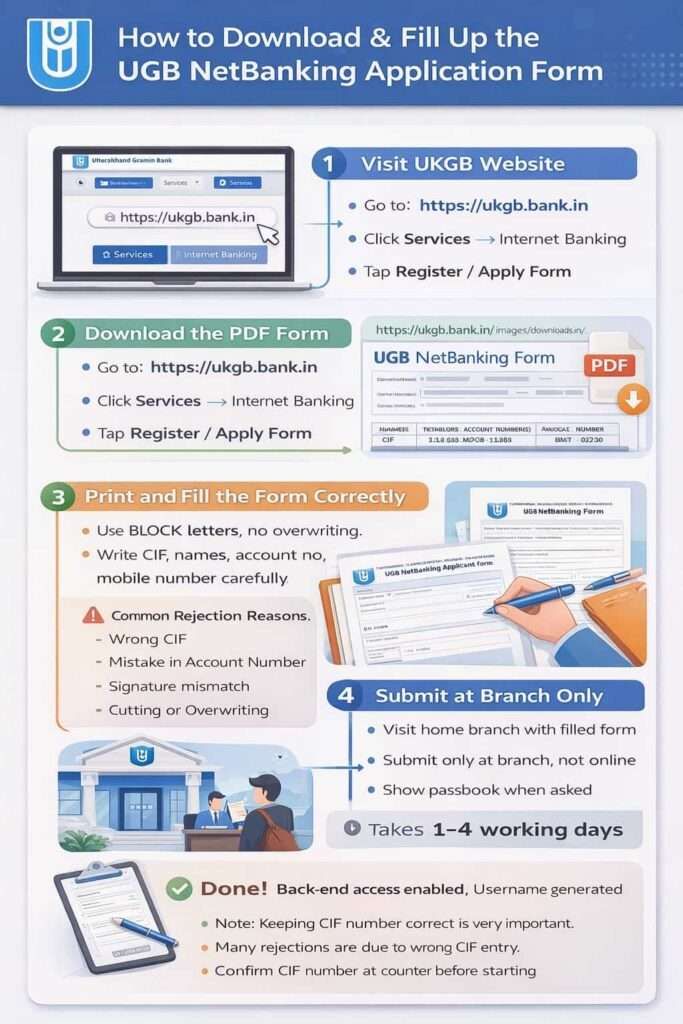
- Customer type: you can tick Personal or Corporate.
- Customer’s name: exact spelling as in the passbook.
- CIF Number: write carefully (no spaces).
- Mobile number: registered mobile (OTP will come here).
- Email ID: If you have entered it, it is good for monthly e-statements.
- Account number(s): add all accounts you want to view.
- Mode of operation: Self / Joint / Either-or (as per your bank record).
- Signature: must match branch signature, please do not overwrite.
- Just leave “For Branch Use Only” blank.
Filling tip: You can use a blue/black pen, BLOCK letters, and avoid corrections. If you must correct a digit, redraw the whole field.
Submit & activation timeline
- Submit to the home branch only (no online upload works, and no other branch will support). You can put your sign, and someone from your family can submit it at the branch.
- Processing time: usually 1–4 working days; in many branches, it happens in 24–48 hours.
- The branch often does not hand out username/password — they just flip a switch in their system and enable first-time online registration.
Reality check: If you get told “wait 7–10 days,” follow up in 48 hours — small branches sometimes delay due to backlog.
First-time web registration after activation in UGB Bank
The active and safe URL is – https://inb.ukgb.bank.in/OnlineUTGB/; however, visit from the official site only.
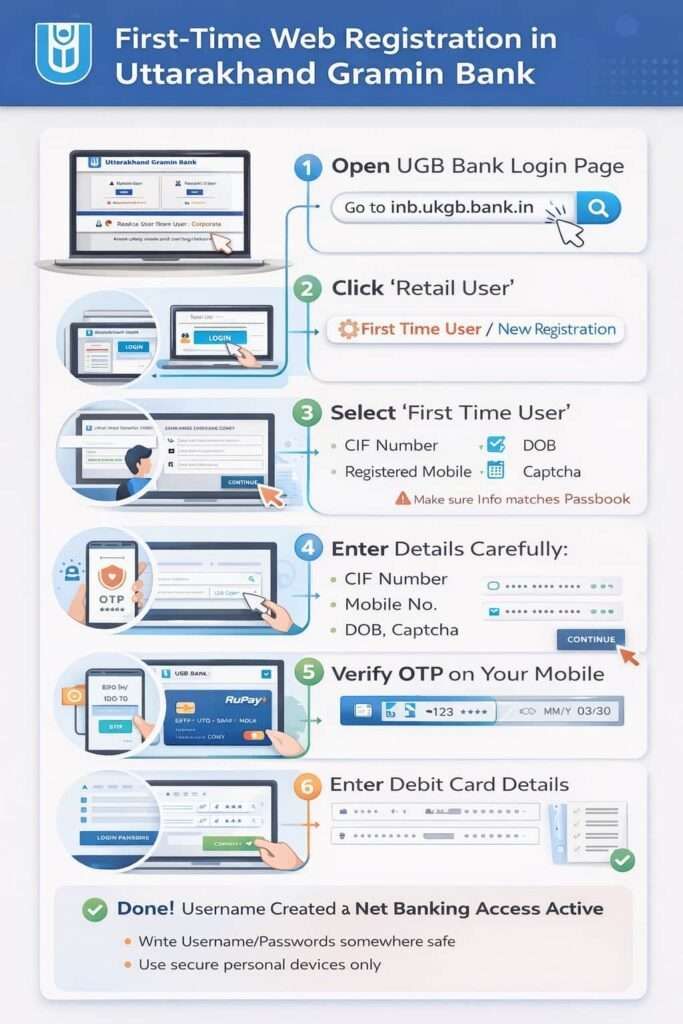
Step-by-step
- Open the portal → choose Retail User.
- Simply, Click New User Registration.
- Enter: CIF number, registered mobile, DOB, CAPTCHA.
- Verify the OTP sent to your account-linked mobile.
- Enter debit card details (as requested — last 6 digits, expiry, and CVV ). Don’t worry, this portal is safe and trusted. However, make sure it has bank.in in the domain.
- Set Login Password + Transaction Password. You have to create a strong password.
- Choose 3 security questions (write answers somewhere safe).
- The system creates a Username. You can note it down and store it safely. Sometimes, your CIF can be your username; however, it is not a general rule.
Security tips for you:
- Do the first registration on your phone/Bluetooth-free PC.
- Write a physical copy of username/password and store it locked, not in phone notes.
Uttarakhand Gramin Bank Login process
Once you have all your credentials, you can now log in to your NetBanking on your phone using Google Chrome or any trusted browser. The process is simple –
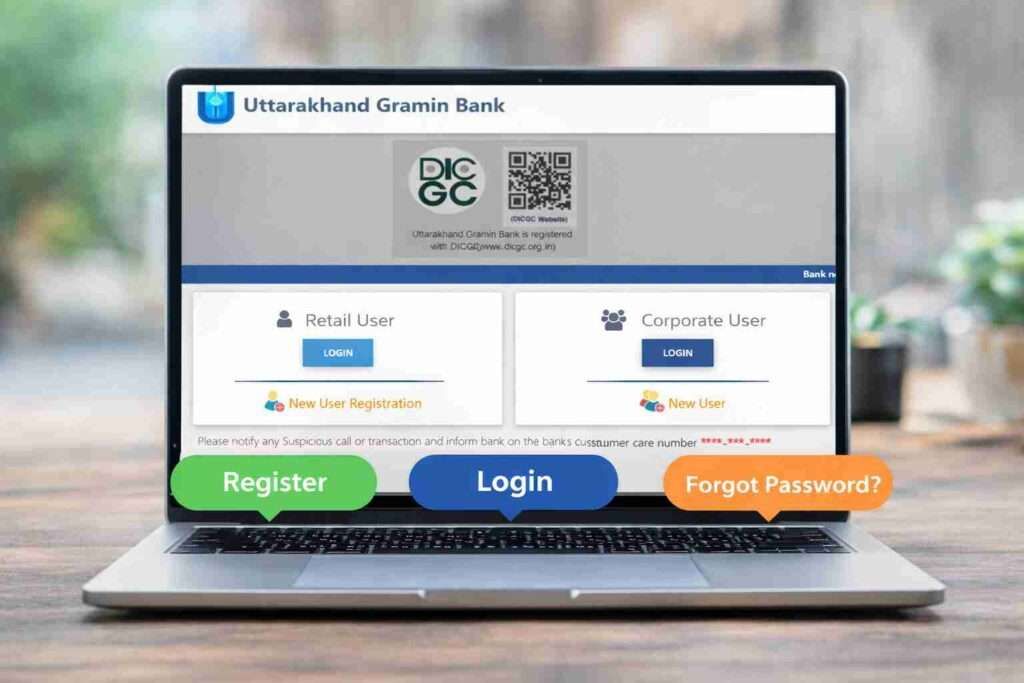
- Visit https://inb.ukgb.bank.in/OnlineUTGB/ → Now, select Retail User → put your new username + password + Captcha.
- For transactions: OTP to registered mobile + transaction password (TPIN) required.
- Session logout: You have to use the logout button; don’t just close the tab.
- Avoid saving credentials in shared browsers.
Smart idea: Set a calendar reminder twice a year to change your login password. Keep the transaction password different from the login password.
How to forget a password and recover a blocked NetBanking account
- Online reset (if enabled) — Simply, use “Forgot Password” on the portal; you need your CIF, Mobile number, DOB or PAN, and your Mobile OTP. Works only if the account is active and the mobile is linked.
- Unblock or reset Account (always works) — Submit reset request at home branch; bank will reissue temporary credentials (may take 24 hours).
Tip: If you lose TPIN as well, go to the branch — the online route may refuse if TPIN is forgotten.
How does UGB Corporate Netbanking: process & credentials work?
If you are a corporate account, your user setup must be done by the branch admin after the company documents verification.
- Bank issues Corporate ID, Username and temporary password. It will be shared via the corporate channel or your office team.
- Approvals and user rights (maker/checker) depend on the company instructions and KYC.
Action item for companies: Keep a single “admin” contact at the branch and maintain an updated board resolution for users.
Mobile & other CBS-based alternatives
- UKGB Mobile App — often easier for quick transfers and balance. (Activation same as net banking.) The first time process is the same; once you have the internet banking activation, you can use the same CIF and mobile number to set your MPIN and TPIN for login. You can download the app from the Google Play Store.
- Missed-call banking — quick balance via missed call number. The active number is 9212005002.
- SMS alerts — real-time debit/credit alerts (must be on a registered mobile).
- WhatsApp services — limited info & updates (if offered by bank). It also works at the same number 9212005002, save it and send Hi, you can use multiple services such as –
- Mini Statement
- Balance enquiry
- Account Statement
- Branch Locator
- Interest Rates
Tip: For daily small payments, use UPI (link bank account to Google Pay/PhonePe) — faster than full netbanking for small value transfers.
FAQs
How can I download the Uttarakhand Gramin Bank statement online in PDF?
You can download PDF statements through UKGB net banking after logging. Go to Account Statement, select the date range, and download the PDF. Mobile banking also supports statement viewing for recent periods.
Is Uttarakhand Gramin Bank’s net banking available for all customers?
No. Net banking is not active by default. You must apply at your home branch, have a CIF, an active debit card, and a registered mobile number. Only then is online access enabled.
How to download the Uttarakhand Gramin Bank net banking mobile app?
You need to visit the Google Play Store, search for “Uttarakhand Gramin Bank Mobile Banking”, and install the official app. Activation still needs branch approval and first-time registration using CIF and a debit card.
Is a debit card compulsory for UKGB net banking activation?
Yes. A debit card is required during first-time registration to confirm account ownership. CIF identifies you, but a debit card verifies you. Without an active card, the net banking setup stops. If you do not have a debit card, you can still activate net banking by visiting your UKGB branch in person.