

GP Parsik Sahakari Bank Ltd. did not start as a digital bank or a small finance bank. It started in 1972 in Kalwa (Thane, Maharashtra) as an Urban Co-operative Bank, when banking in India was completely manual. In those days, there was no mobile, internet, or banking, which meant visiting a branch and updating a passbook.
This background explains one important thing even today:
GP Parsik Bank builds digital services slowly, securely, and with branch control, not in a hurry like new private banks. For almost 26 years, GP Parsik worked as a local co-operative bank. In January 1998, it became a Scheduled Bank. Digital banking was still limited in India at that time, so the bank focused more on system stability than speed.
In 2015, GP Parsik became a Multi-State Co-operative Bank, expanding operations to Goa and Karnataka. RBI issued uniform guidelines that permitted eligible cooperative banks to offer internet banking services to their customers on November 5, 2015.
More states + more customers = digital services become necessary.
But GP Parsik followed a step-by-step model:
- Core Banking first
- Internet Banking
- IMPS, NEFT, and RTGS
- Utility and bill payments
As per the FY 2022–23 Annual Report, GP Parsik Bank added BBPS (Bharat Bill Payment System) to its platform. This shows one important thing:
The bank is continuously adding digital products, but only after stabilising security and branch readiness.
Important Truth: Net Banking Does Not Start With Login
In GP Parsik Bank, net banking does not start with a username and a password.
It starts with account enrolment. If you opened your account recently, ask the branch to activate NetBanking instantly. For existing customers, you need to apply to get delivery of passwords and login details.
If your account is not enrolled, login will not work, no matter how many times you try.
First: Enrol Your Account for Net Banking via Branch (Official Method)
Even today, the most reliable way to activate GP Parsik Net Banking is through a branch application. This process is required to enable your banking digitally on mobile or NetBanking. However, in 2025 or 2026, if you open your account, ask them enable it with the process.
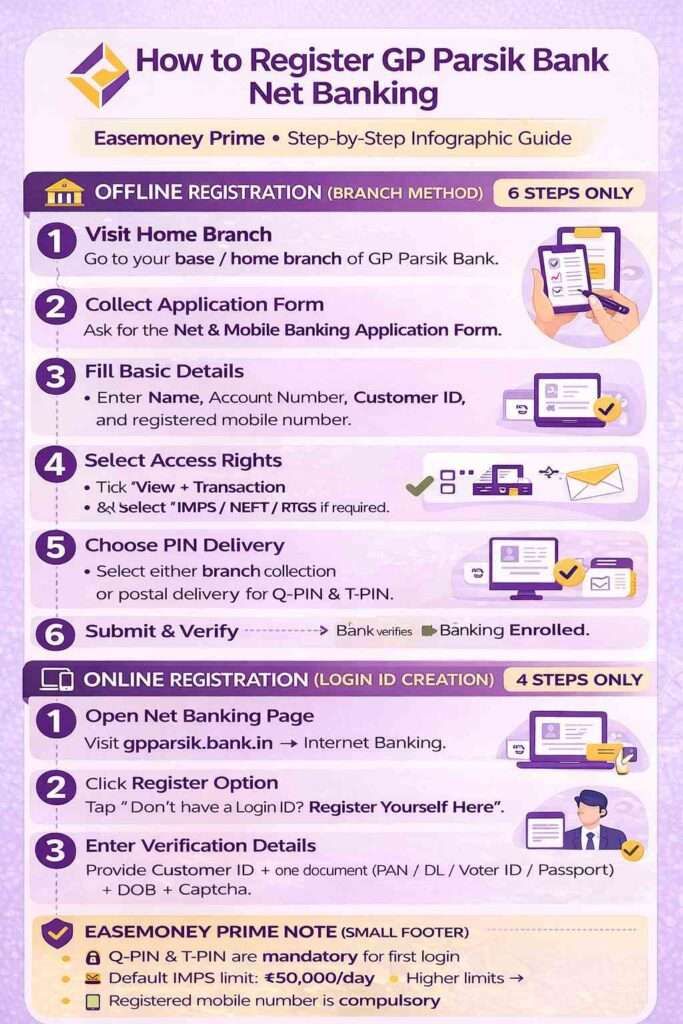
Step-by-step branch enrolment process
- First of all, you have to visit your home/base branch
- Ask for the Internet & Mobile Banking Registration Form (ask if they enable branch token for you, in that case, no application required.)
- Fill the form carefully – below we provide the steps to fill out correctly.
- Submit with signature(s)
- Bank verifies KYC + mobile number
- Bank issues Q-PIN and T-PIN mailers, and it takes 7 to 10 delivery. (You can get this via post or branch directly)
- Internet banking becomes eligible for activation
- Now, you will need a login ID and a Customer ID to register online.
Forms you should know (Very Important)
| Purpose | Form Name |
|---|---|
| Retail Net & Mobile Banking | Net & Mobile Banking Application Form |
| Corporate Net Banking | Corporate Internet Banking Form |
| Increase transaction limit | Net Banking Limit Application Form |
| Joint account mandate | Letter of Mandate (attached in form) |
Tip for you: If you plan to use IMPS, NEFT, RTGS regularly via mobile app or netbanking, submit the limit form together. Otherwise, default limits apply.
This is where many users make mistakes.
How to Fill the GP Parsik Bank Retail Net Banking Form
The fill-up is simple, you can download the form via the website or request it at a home branch, use a black or blue ink pen, and write in your English, hindi, or local language. Firstly, tick the first option – Registration for Internet Banking Facility.
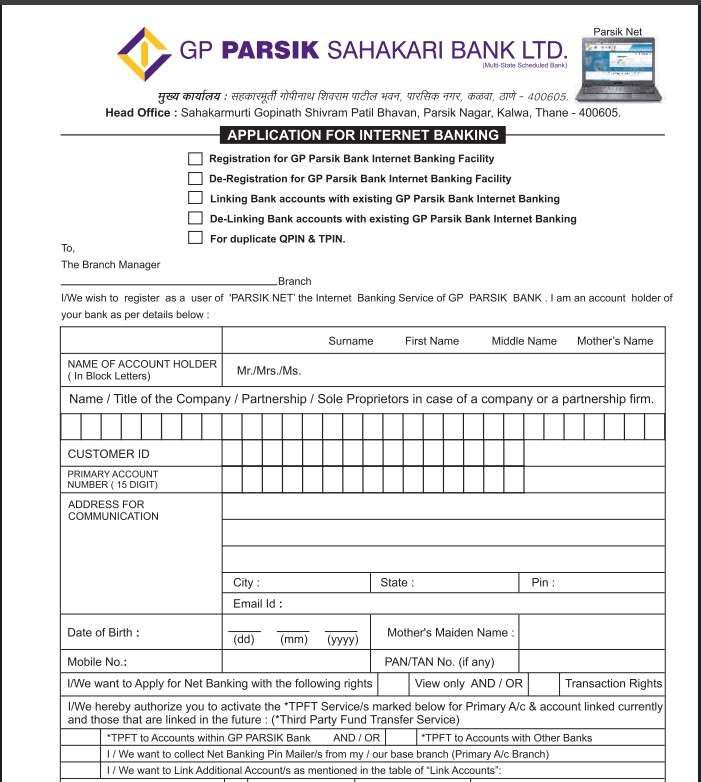
Section 1: Basic details
- Your full account holder name (as per bank record)
- Account number
- Customer ID (mandatory)
- Mobile number (must be active)
- Email ID (optional but recommended, sometimes, the branch allow to send PIN via email, you can confirm first)
Insight: If the email is filled, some alerts and monthly digital statements are also sent digitally instead of by post.
Section 2: Service selection
Tick Registration for Internet Banking
Then select access rights:
- ☑ View
- ☑ Transaction
Always tick both unless you only want balance checking.
Section 3: Fund transfer permissions
Tick:
- Transfer within GP Parsik Bank
- Transfer to other banks (IMPS / NEFT / RTGS)
If you don’t tick the interbank transfer, IMPS/NEFT won’t work later.
Section 4: PIN mailer delivery option
You will see an option: “I want to collect Net Banking PIN mailers from my base branch”
- Tick this → collect Q-PIN & T-PIN from the branch
- Untick → Your PINs are sent by post to your registered address (7–10 days)
Security tip: Senior citizens, joint accounts, and high-value users should always choose branch collection.
Section 5: Signatures
- Single account → your one signature or thumb impression
- Joint account → all holders must sign
Without all signatures or mismatched signatures, activation is rejected. after sign, submit to the branch with valid documents.
Now Understand This Clearly: Customer ID vs Login ID
What is Customer ID in GP Parsik Bank?
The customer ID is 9 to 14 digits and is issued by your GP Parsik bank. It is the default and cannot be changed. The basic work of it is linked to all your accounts for a single identity and is used only for verification. In the Parsik Bank, your customer ID is required for registering NetBanking for the first time, but it is not your login ID.
You can find it in:
- Passbook or Bank statements
- Branch records
- Debit card documents
- Cheque book
- Account opening documents
There is no online “Forgot Customer ID” option. However, you can call the Helpdesk call centre 022-31036543 022-31036504.
What is a Login ID?
As per its name, it is used only to log in. You can create via:
- Online during self-registration, or
- Provided/confirmed by the branch
- Can be changed later after login.
Simple rule: Customer ID = Identity and Login ID = Username
They are not interchangeable. If you forget your Login ID, you can reset it via the online netbanking page. Simply tap on forget login ID and enter your customer ID to reset it.
How to Register Net Banking Online (After Enrolment)
Once your account is enabled, you will need a login ID to set the QPIN and TPIN. follow the process –
- First, visit the official website or visit directly here – https://www.gpparsik.bank.in/internet-banking.html
- Tap on “Don’t have a Login ID? Register Yourself Here. This is a section for registering online.
- Now, for verification, enter your Customer ID (check your passbook)
- Put the number of any one document:
- PAN / Voter ID / Passport / Driving Licence
- Your Date of Birth (It must match the bank records)
- Match the captcha code correctly
- Submit and generate a Login ID
If the details mismatch, a branch visit is required.
What You Need Before First-Time Login
Before attempting your first login into GP Parsik Net Banking, make sure all the following are ready. Most first-time login failures happen because one of these is missing, not because of a system error.
| Requirement | Why it is Needed |
|---|---|
| Login ID | that we already created. |
| Q-PIN (Login PIN) | Temporary password for first login (it will be delivered or branch) |
| T-PIN (Transaction PIN) | Required to set transaction password (it comes with the Qpin) |
| Registered mobile number | This is OTP based system, so you must link your mobile number to your account |
| Customer ID | For verification & recovery only |
| Stable internet connection | PIN change page times out on slow networks |
How First-Time Login Works (Happens Only Once)
After you receive the Login ID, Q-PIN, and T-PIN:
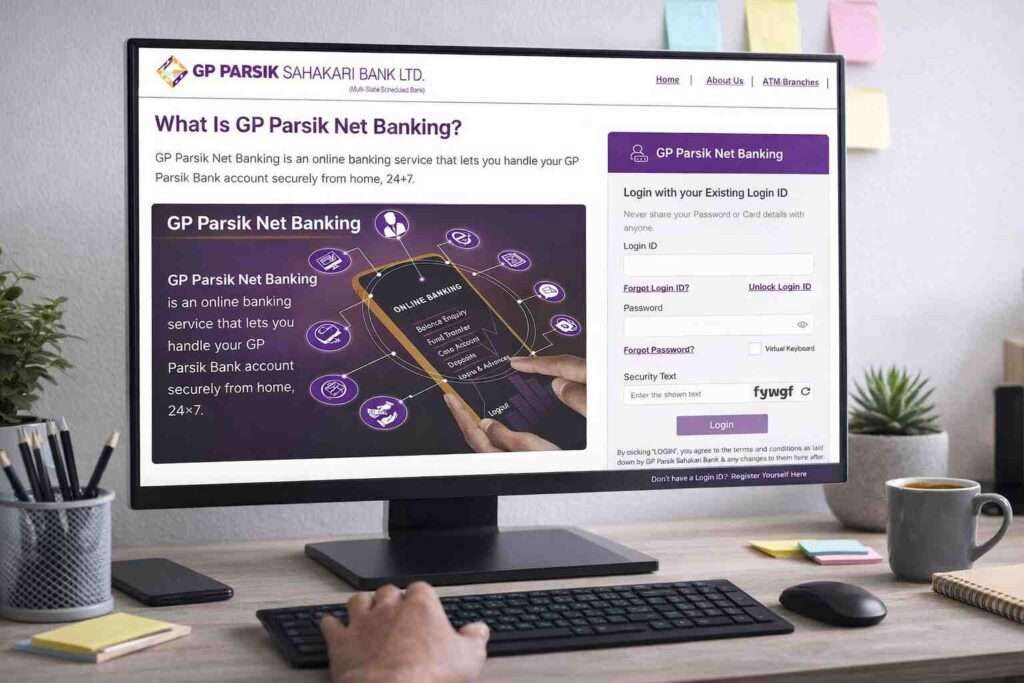
- Open the login page at the official site only – https://www.gpparsik.bank.in/
- Now, tap on Internet banking (it is available on the header menu)
- Select login as a Retail, not corporate, it is for business accounts.
- Enter your new:
- Login ID
- In the password section = enter your Q-PIN (received)
- Fill out the security text; it is 4 to 5 characters only.
- Now, Tap on Login
- You will get an OTP to access.
- After login, the Mandatory PIN change screen appears
You must change both:
Create a new Login PIN (Q-PIN replacement)
- Minimum 8 characters
- 1 uppercase
- 1 lowercase
- 1 number
- 1 special character ( @, %, etc — # not allowed )
Create a Transaction PIN (T-PIN replacement)
- Same rules
- Must not match Login PIN
After success:
- Logout
- Re-login with new Login PIN
Only then does net banking become active.
What You Can Do Inside the GP Parsik Net Banking Account Dashboard
- Check account balance – You can view savings or current account balance anytime without visiting the branch after that.
- View recent transactions – See any recent transactions clearly to track daily spending.
- Download account statement (up to 180 days) – Useful for office, loan, or tax work. You will get all statements in PDF via email or direct download.
- Save statements as PDF – Download and keep records safely on your phone or computer.
- Request a cheque book online –Go to the service request, and you can request it. It will deliver only to your registered address.
- Check cheque status – Know your cheque status: passed, pending, or cancelled.
- Stop payment of cheque – Instantly stop a cheque if lost or issued by mistake.
- IMPS money transfer – It is enabled, transfer available 24×7 with a default limit of ₹50,000 per day.
- NEFT transfer – Used for normal bank-to-bank transfers with better tracking.
- RTGS transfer – For high-value transfers above 2 lakh; a minimum amount applies as per RBI rules.
- View loan details – You can check the loan balance, EMI amount, and repayment schedule anytime.
- Check FD / RD details – View deposit amount, maturity date, and interest details.
- Security activity log – It shows login and transaction history to detect misuse.
- Last login time alert – Helps confirm whether only you accessed the account.
- Password expiry alert – Reminds you to change your password on time.
- Utility bill payments (BBPS) – Pay mobile recharge, electricity (MSEB, Torrent), landline (BSNL, MTNL), DTH, insurance, and gas bills.
How “Forgot Password” Works in GP Parsik Bank
If you forget your password or want to reset –
- Simply go to your login page on your smartphone. You can use Google Chrome or any trusted web browser.
- Tap on Forgot Password, this available just below the password entry section.
- To reset it, you have to enter the –
- Your Login ID (it is a must required)
- Any one linked document (PAN / Voter ID / DL / Passport)
- Your Registered mobile number
- Security captcha.
- Enter your mobile OTP
- Set:
- New Login Password
- New Transaction Password
No branch visit needed if the mobile number is active.
Question Answers For You
Why do I need to visit the branch for GP Parsik Bank net banking registration?
Your branch visit confirms your mobile number, signature, and identity. This avoids wrong activation, fraud, and future issues. Especially helpful for joint accounts and senior citizens.
I created a login ID online at GP Parsik Netbanking Portal, why login is not working.
Online Login ID creation is only the first step for the full process. Net banking activates only after Q-PIN and T-PIN are issued by bank, either by post or branch collection.
What is the safest way to get Q-PIN and T-PIN?
From real experience, collecting PIN mailers from your home branch is safest. You get sealed envelopes after ID check, without postal delay or address problems.
Why is the IMPS limit only ₹50,000 by default?
This is for safety. Instant transfers are risky. The bank keeps low default limit and allows higher limits only after branch approval, once your usage pattern is understood.
What mistake causes most first-time login failures?
People rush. They don’t keep T-PIN ready, use slow internet, or close browser during password change. First login needs calm focus for 10–15 minutes.